




How to Fix iPhone File Stuck on Waiting?

The Files app on iPhone makes it easy to store, organize, and access documents across iCloud Drive, local storage, and third-party cloud services. However, many users occasionally encounter a frustrating issue where a file remains stuck on “Waiting…” instead of downloading or opening. Whether you’re trying to access an important PDF, photo, video, or document, seeing the “Waiting” status can prevent you from getting your work done.
This problem can occur for several reasons, including unstable internet connections, insufficient storage, iCloud synchronization issues, software bugs, or temporary system glitches. Fortunately, most cases can be resolved with a few simple troubleshooting steps.
In this guide, we’ll explain why iPhone files get stuck on “Waiting,” walk you through the most effective fixes.
1. How to Fix iPhone File Stuck on Waiting?
If your iPhone files are stuck on “Waiting,” try the following solutions one by one until the issue is resolved.
1.1 Check Your Internet Connection
Files stored in iCloud Drive require a stable internet connection to download. If your Wi-Fi network is weak or unstable, downloads may remain in the “Waiting” state indefinitely.
Try these steps:
- Connect to a reliable Wi-Fi network.
- Switch between Wi-Fi and cellular data.
- Turn Airplane Mode on for 30 seconds, then turn it off.
- Restart your router if necessary.
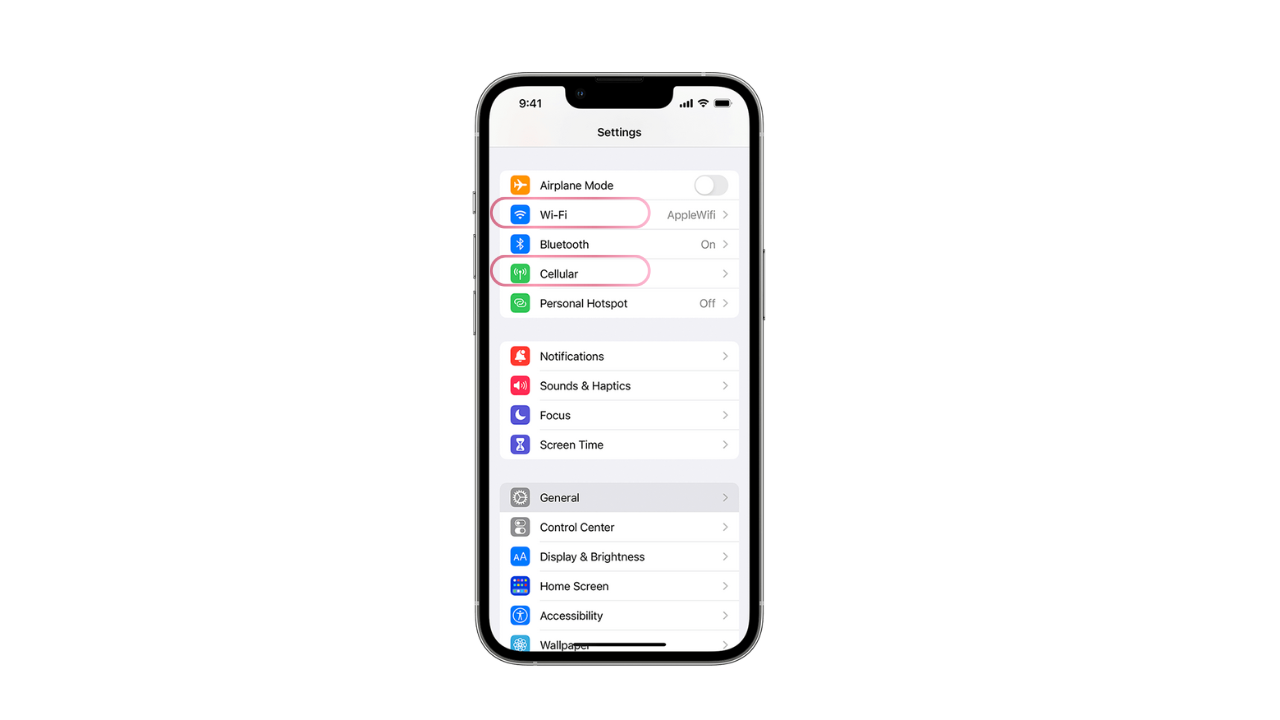
After reconnecting to the internet, return to the Files app and check whether the download begins.
1.2 Pause and Retry the Download
Sometimes the download process simply gets stuck.
To refresh it:
- បើក Files កម្មវិធី
- Locate the file showing “Waiting.”
- Tap the file again; If available, tap Download Now or retry the download.
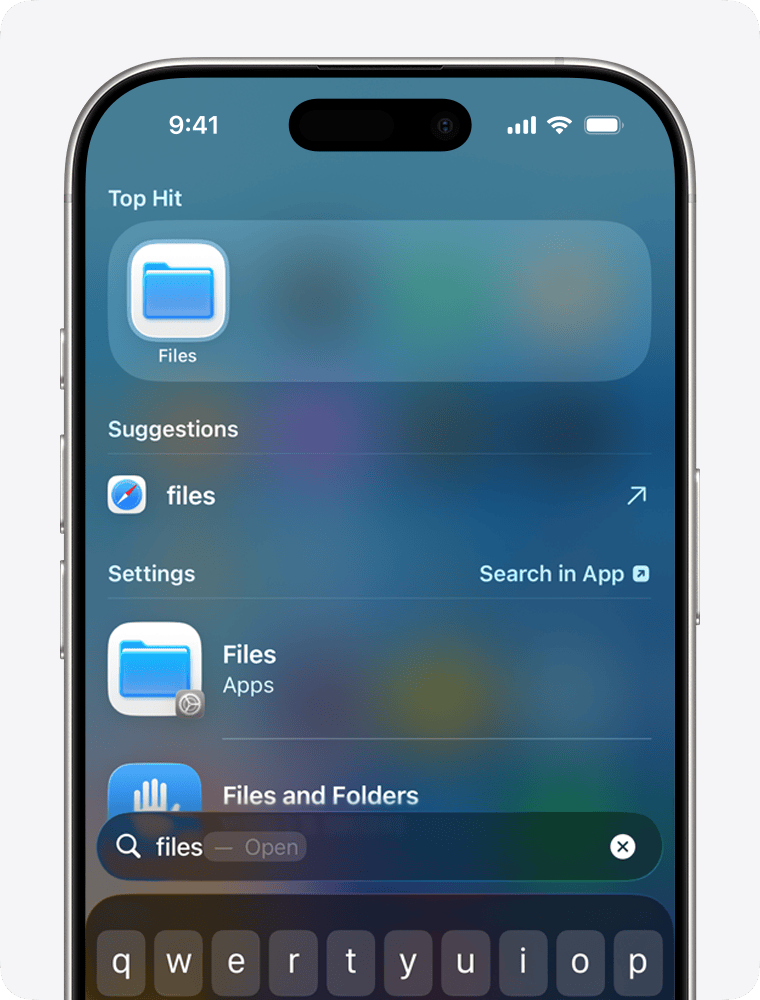
In many cases, manually restarting the download resolves temporary syncing issues.
1.3 Force Close and Reopen the Files App
Applications occasionally become unresponsive during background syncing.
To restart the Files app: Swipe up to close the Files app, reopen it, and try the file again.
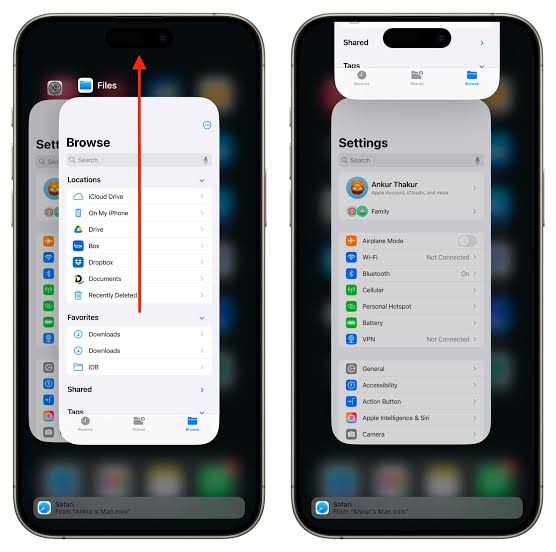
This refreshes the app and often clears minor glitches.
1.4 Restart Your iPhone
A simple reboot can fix many temporary software problems affecting file downloads.
To restart:
- Press and hold the Side button together with a Volume button.
- Slide to power off.
- Wait about 30 seconds.
- Turn the iPhone back on.
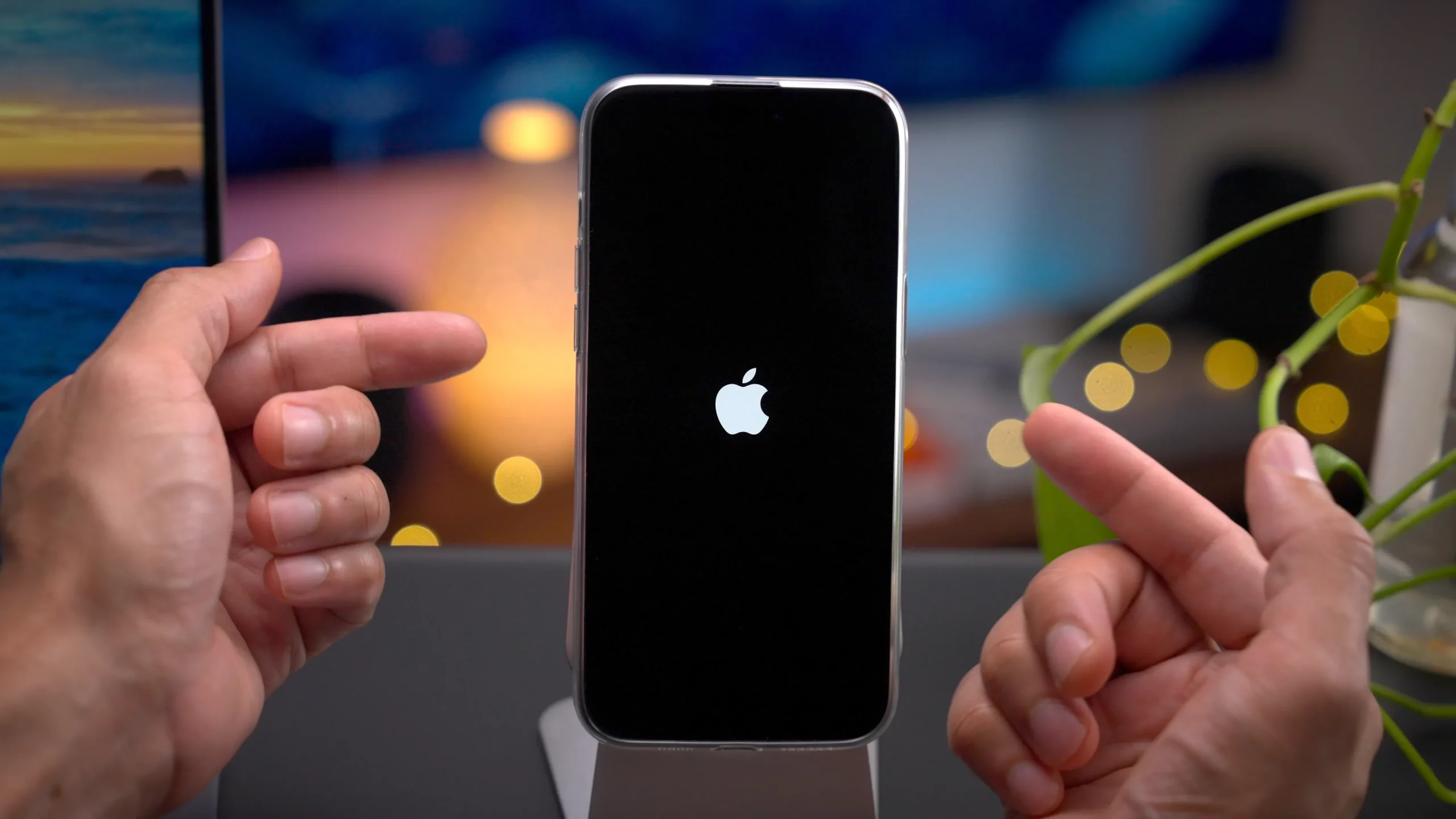
After restarting, reopen the Files app and see if the file downloads normally.
1.5 Check Available Storage
If your iPhone is running low on storage, file downloads may get stuck or fail to complete.
To check storage:
បើក
ការកំណត់ >
ទៅ
ទូទៅ
>
ការផ្ទុក iPhone >
Review the available space.
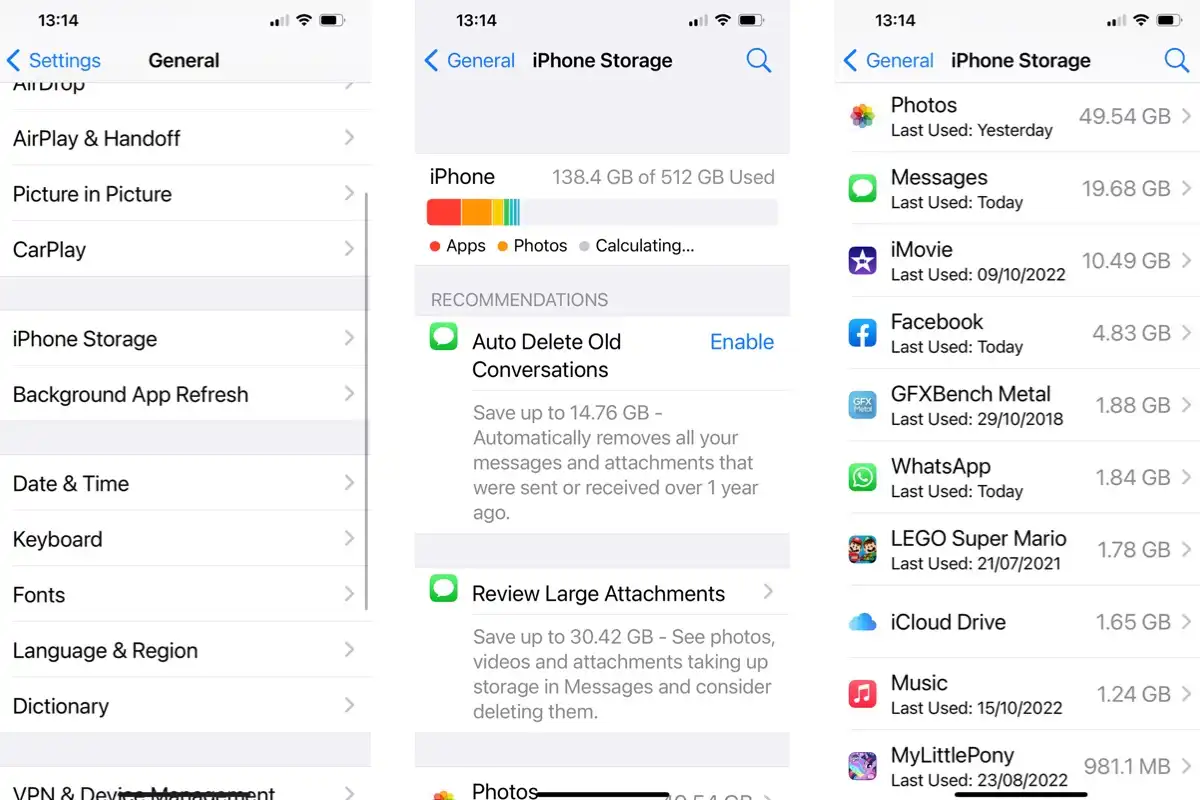
If storage is low:
- Delete unused apps.
- Remove duplicate photos.
- Clear downloaded videos.
- Empty the Recently Deleted album.
Once enough storage is available, try downloading the file again.
1.6 Verify iCloud Drive Is Working Properly
Since many files are stored in iCloud Drive, syncing problems may prevent downloads.
Check your settings:
- ទៅ ការកំណត់ > [ឈ្មោះរបស់អ្នក] > iCloud .
- ធានា iCloud Drive ត្រូវបានបើក។
- Confirm you’re signed in with the correct Apple Account.
- Wait several minutes if iCloud is still syncing.
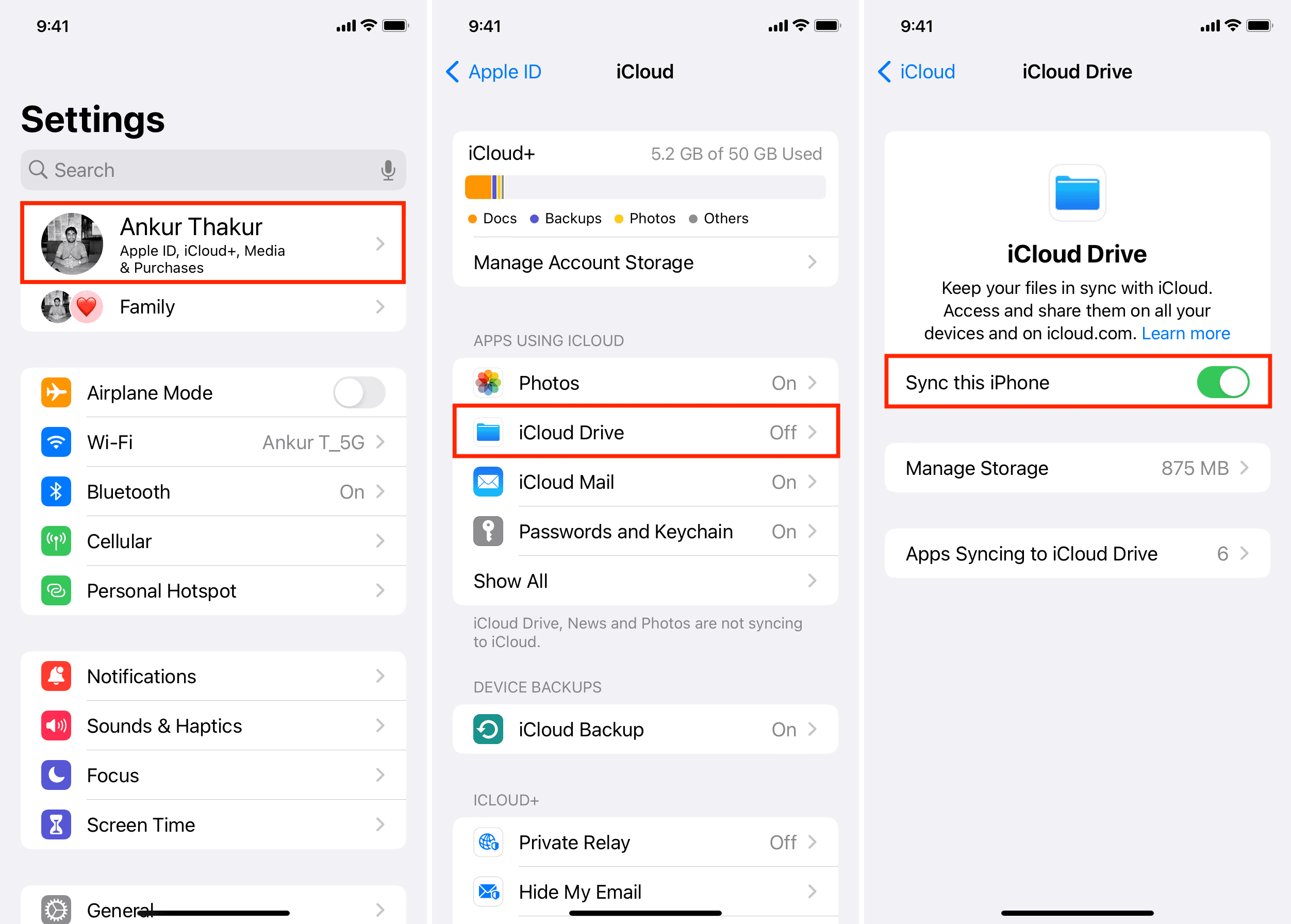
If syncing appears stuck, disabling and re-enabling iCloud Drive may help after ensuring your data has been fully uploaded.
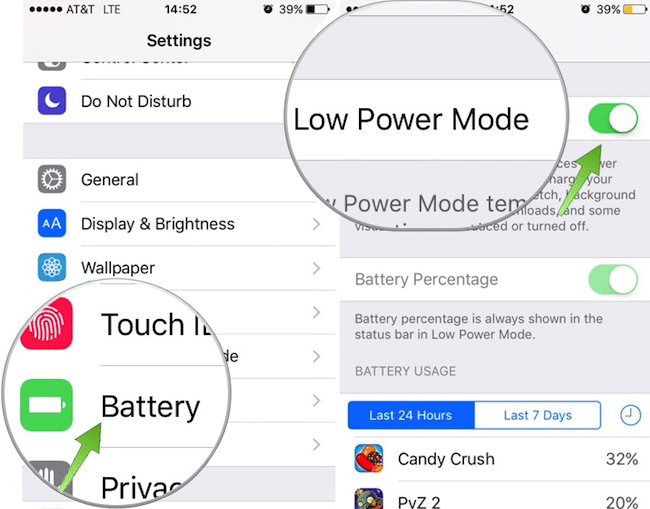
1.7 Disable Low Power Mode
Low Power Mode reduces background activity to save battery life, which may delay cloud downloads.
To disable it: Open Settings > Tap Battery and turn Low Power Mode off.
Then reconnect to Wi-Fi and retry the download.
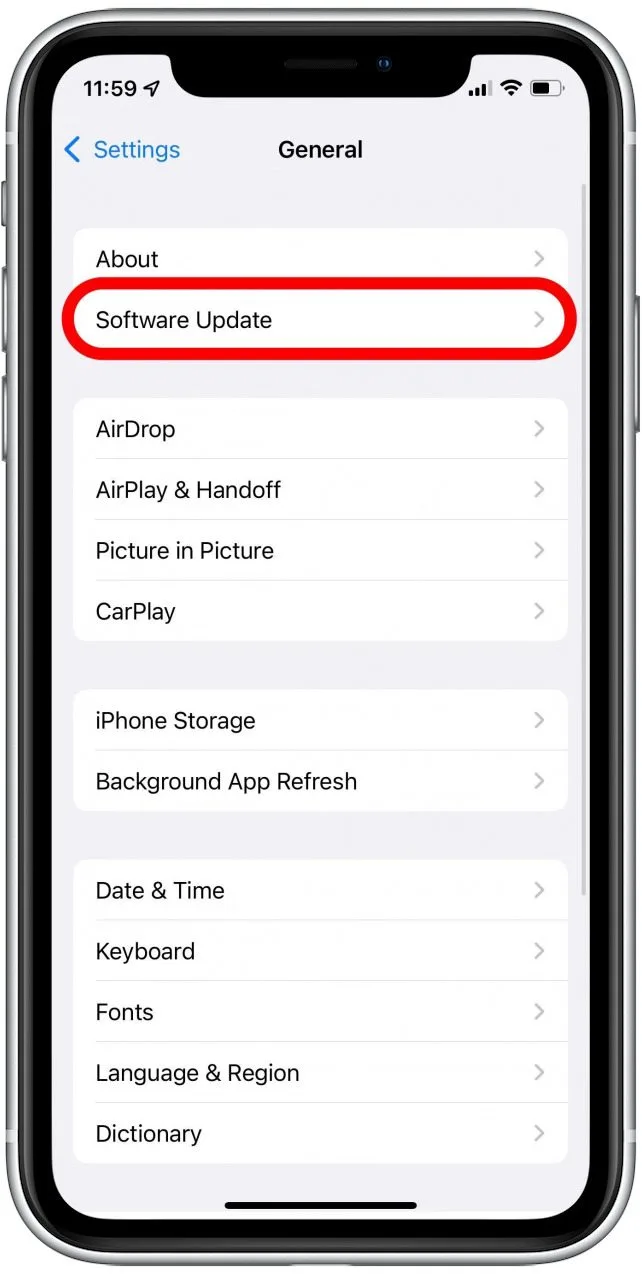
1.8 Update iOS
Apple regularly fixes software bugs through iOS updates.
To check for updates: Open Settings > Tap General and select Software Update > Install any available update.
Running the latest version of iOS improves compatibility with iCloud and the Files app.
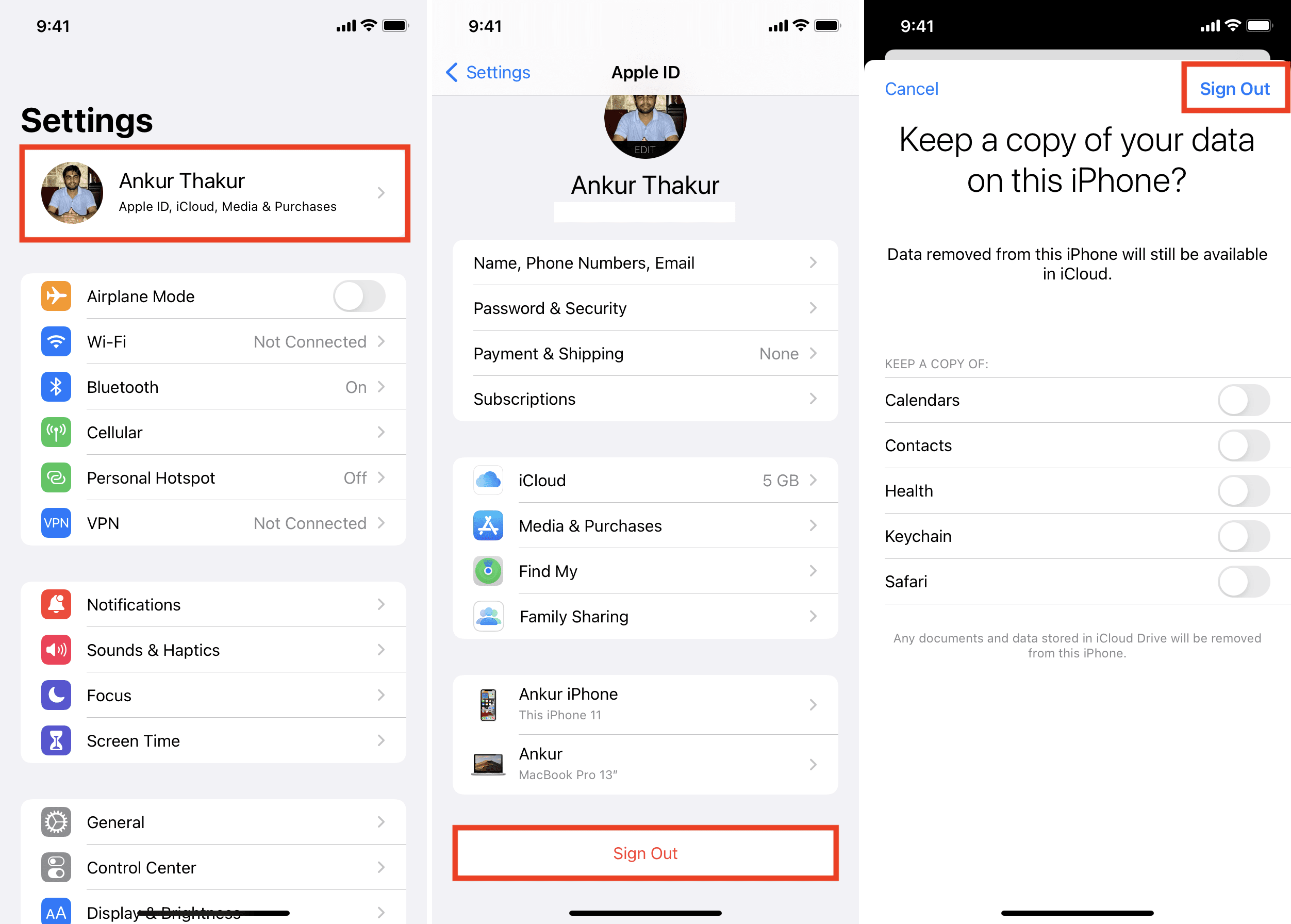
1.9 Sign Out and Back Into iCloud
If iCloud authentication has become corrupted, signing out and back in can refresh your account.
Before doing this, ensure all important data has synced.
Then: Open Settings and tap your Apple Account > Scroll down and tap Sign Out > Restart your iPhone and sign back in.
Allow iCloud several minutes to resynchronize your files.
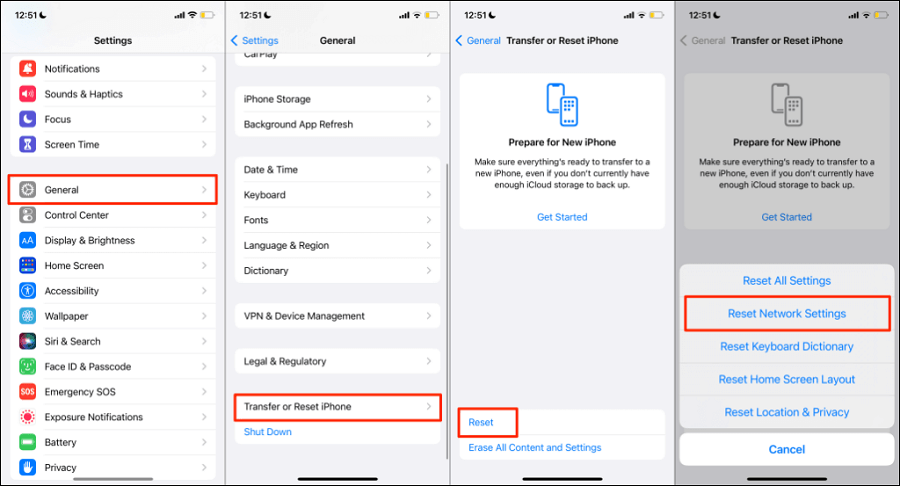
1.10 Reset Network Settings
Network configuration problems can interrupt downloads.
To reset network settings: Go to Settings and tap General > Select Transfer or Reset iPhone and tap Reset > Choose Reset Network Settings.
Your saved Wi-Fi passwords will be removed, so be prepared to reconnect afterward.
2. Bonus: Advanced Fix iPhone System Issues with AimerLab FixMate
If none of the above methods solve the problem, the issue may stem from a deeper iOS system error rather than the Files app itself. In such cases, using a dedicated iOS repair tool can save time and eliminate the need for a factory reset.
AimerLab FixMate is an iOS system repair utility designed to resolve a wide range of software-related issues without erasing your personal data in most repair scenarios.
Some notable features of AimerLab FixMate include:
- Repairs 200+ iOS system issues without data loss using.
- One-click entry into and exit from Recovery Mode.
- Supports the latest iPhone models and iOS versions.
- Fixes update failures, boot loops, black screens, and frozen devices.
To repair your iPhone using AimerLab FixMate:
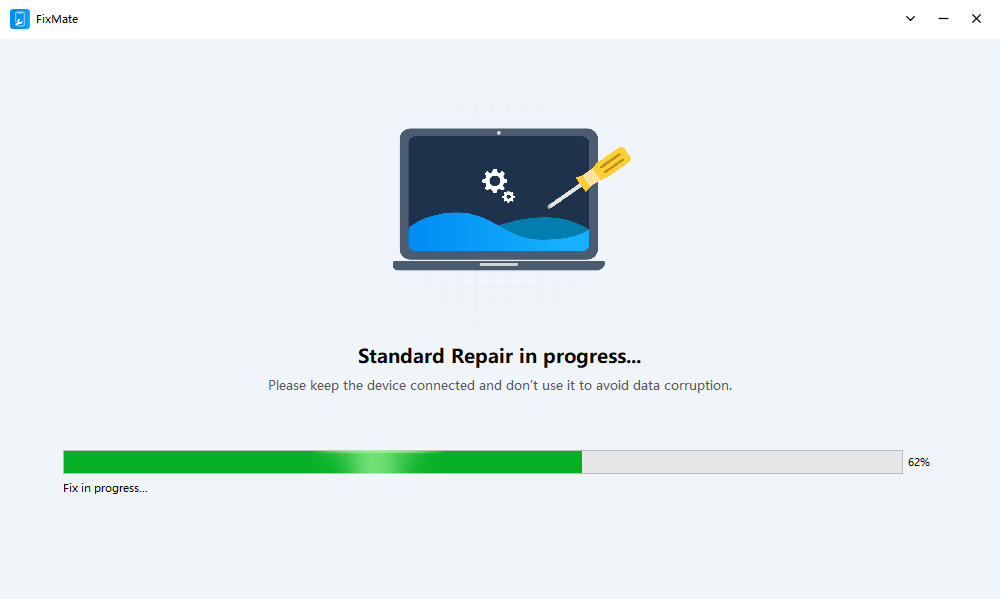
- Download, install and launch AimerLab FixMate on your Windows PC; Connect your iPhone using a USB cable, then choose Standard Repair to fix common system issues while preserving your data.
- Download the appropriate firmware package when prompted; Click to start repairing and wait for the process to complete.
- Once finished, your iPhone will restart automatically.
3. សេចក្តីសន្និដ្ឋាន
An iPhone file stuck on “Waiting” is usually caused by network interruptions, insufficient storage, iCloud synchronization problems, or temporary software glitches. In many cases, checking your internet connection, restarting the Files app, rebooting your iPhone, freeing up storage, or updating iOS is enough to resolve the issue.
However, if the problem persists after trying all standard troubleshooting methods, the root cause may be a deeper iOS system issue. In that case, AimerLab FixMate can help repair iOS system issues without requiring a factory reset in most cases.
With its simple interface, comprehensive repair capabilities, and support for modern iOS devices,
FixMate
is a worthwhile tool for resolving stubborn iPhone issues and restoring your device to normal operation.
- How to Resolve iPhone Speaker Grayed Out?
- How to Fix iPhone Could Not Be Restored Error 9?
- iPhone Bluetooth Keeps Disconnecting? Try These Solutions
- How to Fix iPhone 14 Pro Max Screen Green Flickering?
- How to Resolve iPhone Switched to Incompatible eSIM Stuck in Boot Loop?
- How to Resolve “iPhone Not Activated – Contact Your Carrier”?
- តើធ្វើដូចម្តេចដើម្បីបន្លំ Pokemon Go នៅលើ iPhone?
- ទិដ្ឋភាពទូទៅនៃ Aimerlab MobiGo GPS ទីតាំង Spoofer
- តើធ្វើដូចម្តេចដើម្បីផ្លាស់ប្តូរទីតាំងនៅលើ iPhone របស់អ្នក?
- កំពូល 5 ក្លែងក្លាយទីតាំង GPS Spoofers សម្រាប់ iOS
- និយមន័យឧបករណ៍ស្វែងរកទីតាំង GPS និងការផ្តល់យោបល់ Spoofer
- របៀបផ្លាស់ប្តូរទីតាំងរបស់អ្នកនៅលើ Snapchat
- របៀបស្វែងរក/ចែករំលែក/លាក់ទីតាំងនៅលើឧបករណ៍ iOS?